LaunchReel Kit
FREE CLIP EDITOR · 0 CREDITS

Free Video Clip Editor

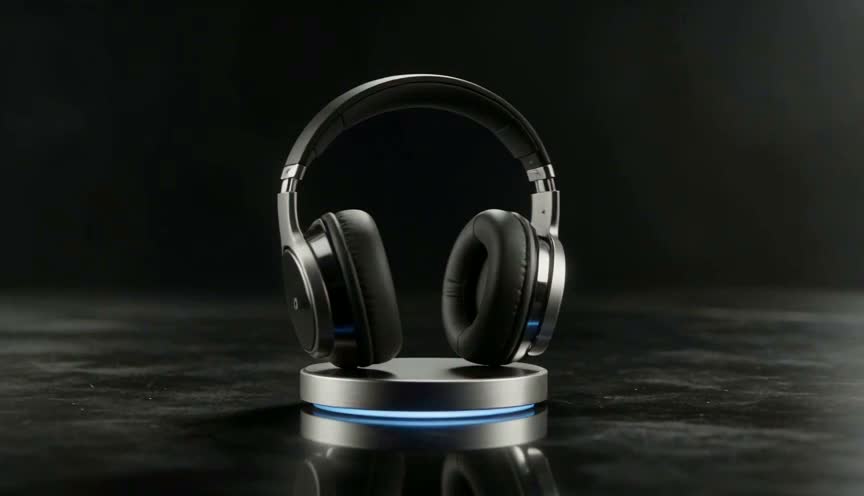
Add your logo and text, crop or trim an existing video, then export it for free. Start with your generated clip or try the headphone sample.

Start with the headphone sample, open one of your completed clips, or upload a downloaded clip. Export preserves the selected clip length and has no audio. Uploads and drafts stay in this browser.

Layers and crop
Advanced options · product image overlay

Optional: place your exact product image or screenshot over the video as a separate layer.

Loading local draft…

Edited preview

Headphone scene ready to edit
Compare with original

Your original is kept separately. Download each edited export to retain more versions.

Changing the generated scene itself requires a new generation. Your previous video remains in My videos; the studio shows the credit cost before you submit.

Prepare a new AI scene →

How to edit a video clip for free

  1. Load the headphone sample or choose your own MP4 or WebM clip, up to 30 seconds and 50 MB.
  2. Add your logo and text, then adjust their position and size. Crop or trim the video if needed.
  3. Preview the result, export in this browser and download your edited video.

Keep your product image and logo exact

Your images and text are separate layers over the original clip. Free editing uses no generation credits and does not generate a new AI scene. Changing the scene requires a separate paid generation. Product images and screenshots can optionally be added under Advanced options.

What can I upload and export?

Use MP4 or WebM video and PNG, JPG or WebP images. Exports are silent; MP4 or WebM availability depends on your browser. Keep this tab visible while exporting. A recent Chrome browser is recommended.

Where is my draft saved?

Uploaded editing assets and the draft are saved locally in this browser when local storage is available. Download each finished export to keep it. Opening a saved generated task requires access to your account.